
Features / File management and browsing views
File management and
browsing views
Browse and organize local media in real folders. Select multiple items, rename, move, delete and share files. Browse videos in grid, list or details view, with sorting and file search.
iPhone · iPad · Duo inner and outer displays
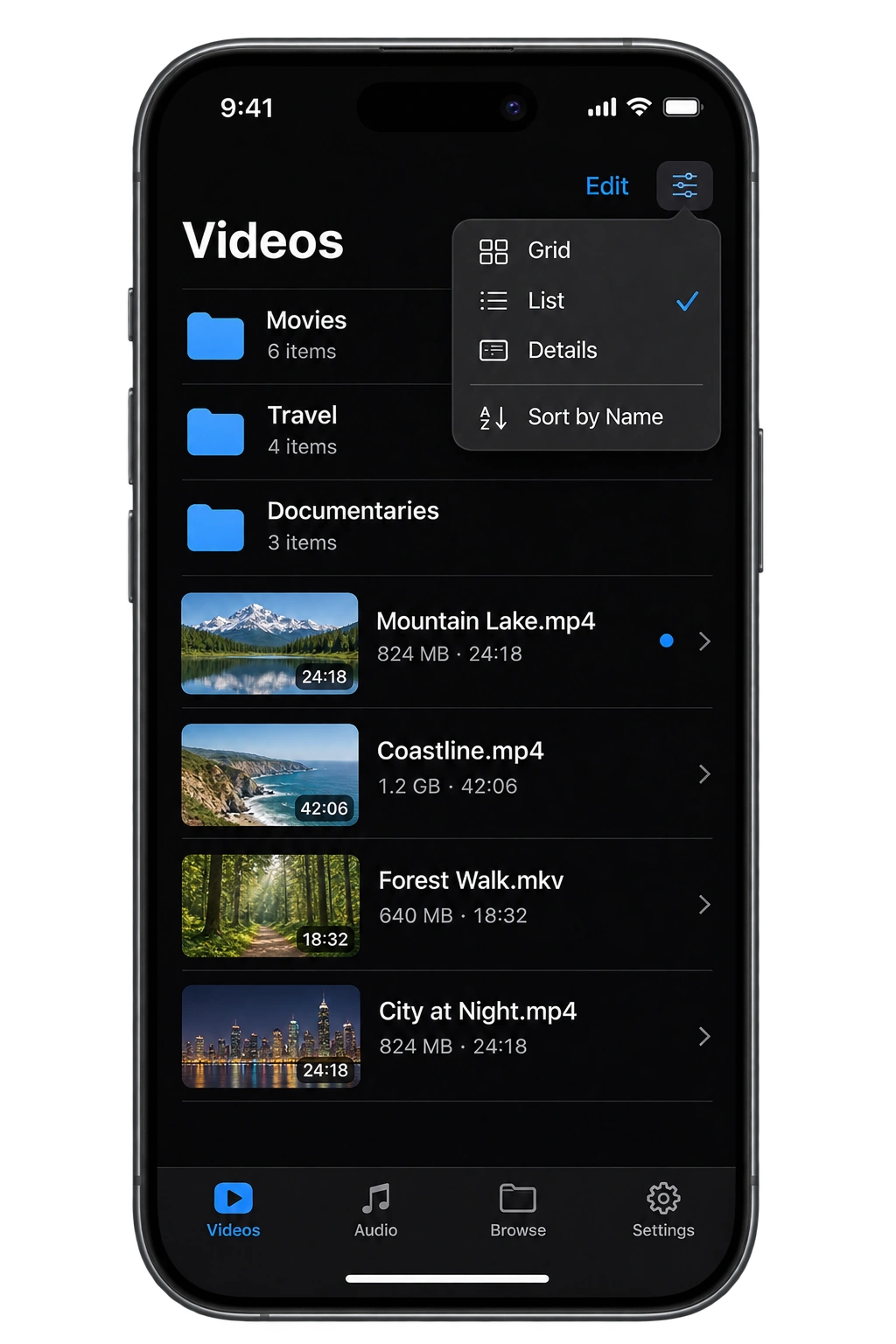
File management
Video and audio follow the actual folders on your device. Open a folder to play files or use editing mode to organize local files and folders within the app.
Create folders
Create a folder in the current location to organize files by series, album or purpose.
Select multiple items
Touch and hold a file or folder to enter selection mode. Select items individually or select all, then delete them or open more actions.
Batch rename
Set a base name and automatic numbering for a group of files while keeping extensions. Preview all old and new names before confirming.
Move to a folder
Move selected files or folders to another folder. If names conflict, cancel, replace or keep both.
Delete files and folders
Delete selected local items, with a chance to cancel before confirmation. Deleting a folder also deletes its contents.
Share and file information
Send files through system sharing or view their names, paths, types, sizes and other information.
Browsing views
Videos have three views of the same folder. Audio offers list and details views.
- Grid
- Browse videos primarily by thumbnail, with names and durations, to find content by its appearance.
- List
- Browse files in rows with names, thumbnails and other information, useful for large folders and longer names.
- Details
- Compare columns: name, size, type and modification date for video; name, artist, album and duration for audio. Visible columns adapt on narrow screens.
Watched status
Unwatched videos have a blue dot before their name, and items can show saved progress. You can also mark videos watched or unwatched manually.
Show all files
View subtitles, images and other files in a folder to manage media and accompanying files together.
Sorting files
Change sorting in the view menu or tap a column heading in details view. Sorting is retained when switching views, and folders appear first.
- Video folders
- Sort by name, file size, type or modification date in ascending or descending order.
- Audio folders
- Sort by name, artist, album or duration. Enable “Use file names in lists” to display and sort by actual file names.
File search
Search from Videos or Audio to find file and folder names across the local library, including nested folders.
Filter by type
Combine video, audio, subtitle, image and other file type filters to narrow the results.
See the containing folder
Results show names and relative folder paths to distinguish files with the same name in different locations.
Open search results
Play video or audio, open folders, or view information and share other files.
Search history
Reuse previous search terms, remove individual entries or clear the search history.
Download Perfilm
For iPhone and iPad